

What stays on your iPhone
Everything: routes, journeys, photo places, the places you save, and settings. There’s no Waymark account, and the app talks to no Waymark server, so there’s nothing of yours for us to see, sell or lose.
A few things leave your phone, and only these:
- Requests for the map itself: map tiles from OpenFreeMap and terrain from Amazon Web Services, which, like any website, see which pieces of the map were asked for and your IP address, never your routes.
- An address you type to set a place, which goes to Apple’s search.
- If you’re in a friends group: your name, the city you were last in and how much of each place you’ve explored, kept in iCloud for the group. Never your map or routes.
- If you turn it on, a backup to your own iCloud Drive.
Waymark also keeps a short log of its own errors on your iPhone (when, the app version and what went wrong; never your locations, places or names). It leaves only if you share it from Settings › About › Diagnostics, and Clear or Delete all data empties it.
Hidden places and journeys
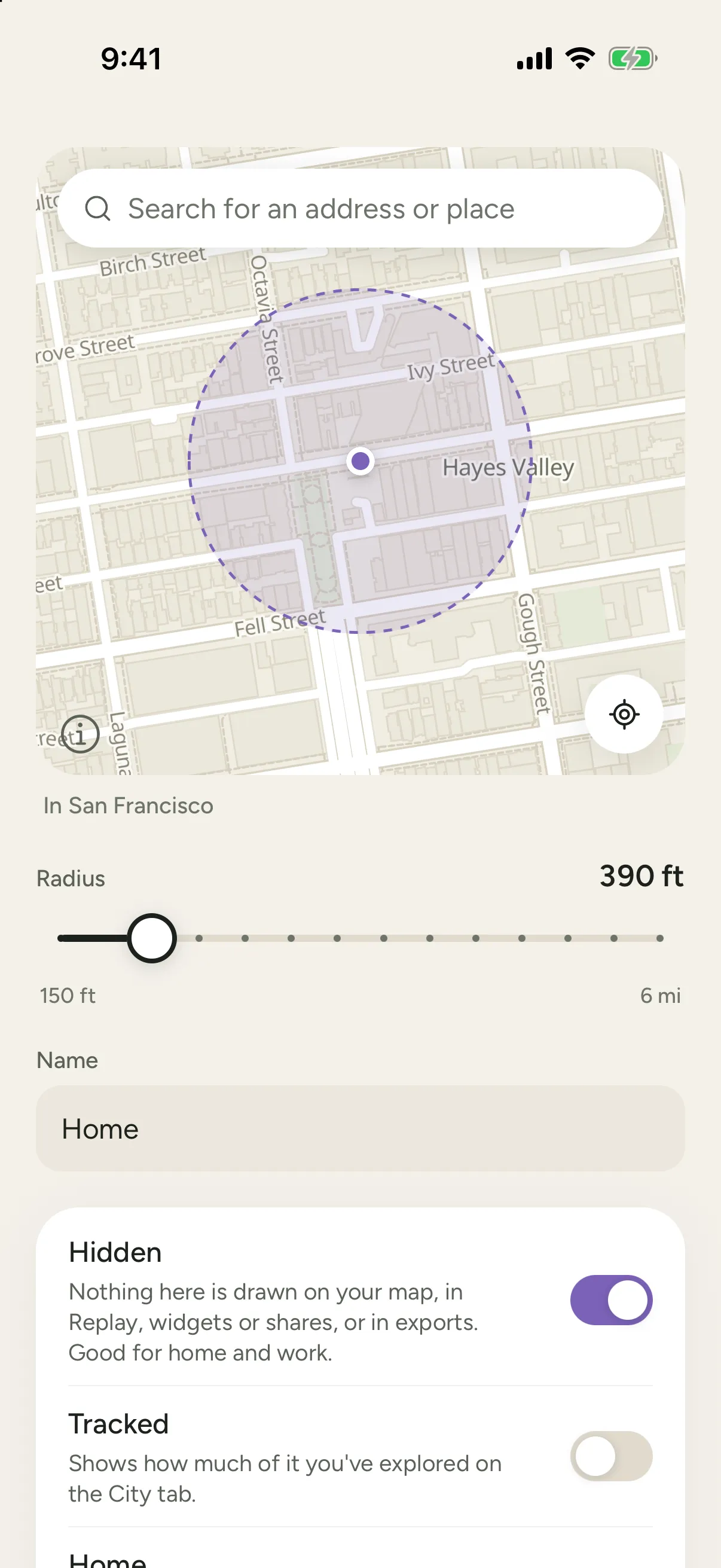
A place is a circle you name, around somewhere like home, work or a park. Each place has three switches:
- Hidden: nothing inside it is recorded, drawn on your map, in Replay, widgets or shares, or exported. Only you see it, as a lavender wash on your own map.
- Tracked: the City tab shows how much of it you’ve explored. A hidden place can be tracked too.
- Home: you have one home. Around home and the Home map widget centre on it. A new home starts out hidden; being home doesn’t change either switch.
Add one in Settings › Places: search for an address or move the map under the pin, pick its size on the slider, name it and set its switches. On the map, tap a photo pin and choose Hide this spot to hide the area around where it was taken; the photo itself isn’t removed.
A journey can be hidden too. Choose Hide this journey on the map, in Journeys or on the journey itself: it’s gone from your map, your stats and exports, and you can undo it straight away. Settings › Hidden journeys lists every one, each with Show again.
Removing everything inside a place
On the scratch map, tap a country, state or city you’ve explored. Waymark says what’s recorded there (so many journeys, photo places and places from Places only) and Remove All takes out only what’s inside it:
- A journey wholly inside goes to Recently deleted in Settings › Your data, where you can restore it.
- A journey that crosses the border keeps the part outside.
- Photos come off your map and stay in your Photos library.
It’s one step to undo: Undo on the message that follows, or in Settings › Your data for 10 minutes. Waymark scratches the place again if you record there later.
Photos you remove
A photo you remove from Waymark comes off your map and out of your numbers, and stays in your Photos library: Waymark never deletes a photo. Waymark keeps a note of where and when it was taken, so a later scan skips it and Settings › Import › Photo library › Removed photos can put it back. Backups carry that note; exports don’t, and Delete all data clears it.
Backups
Your atlas lives on one iPhone, so keep a copy. Everything is in Settings › Your data.
- Back up to iCloud Drive. Once a day, to your own iCloud Drive. Waymark keeps 7 daily and 4 weekly backups. Workouts read from Apple Health stay on your iPhone and aren’t included, as Apple requires for health data.
- Back up now makes one straight away.
- Save a backup file writes everything, private data included, as one .waymark file to keep wherever you choose. It includes your Apple Health workouts.
A .waymark file is a zip holding one plain JSON file in a published format, so your atlas outlives the app. Rename it to .zip to open it anywhere.
Restoring
Settings › Your data › Restore from a backup reads a backup from iCloud Drive or a file, and asks how:
- Merge adds what isn’t here yet. Nothing here is removed, and no journey is added twice.
- Replace swaps this atlas for the backup.
Before every restore, Waymark saves a copy of the atlas as it was, so a restore can be undone. To move to a new iPhone, back up on the old one, then restore on the new one.
Exporting
Settings › Your data exports your journeys as GPX, CSV or JSON for other apps, and shares the file however you like. Include private data is off by default: an export then leaves out your places, hidden journeys, points inside hidden places and references to your photos.
Deleting everything
Settings › Your data › Delete all data permanently removes every journey, import, place and setting, and every copy Waymark keeps on this iPhone: backups saved before restores, exported files and journey pictures. Automatic iCloud backup turns off.
Backups already in iCloud Drive, and files you exported, are yours and stay where you saved them. Delete them in the Files app if you want them gone. Deleting the Waymark app also deletes everything it keeps on your iPhone.
The full story is in the privacy policy.