

What it needs
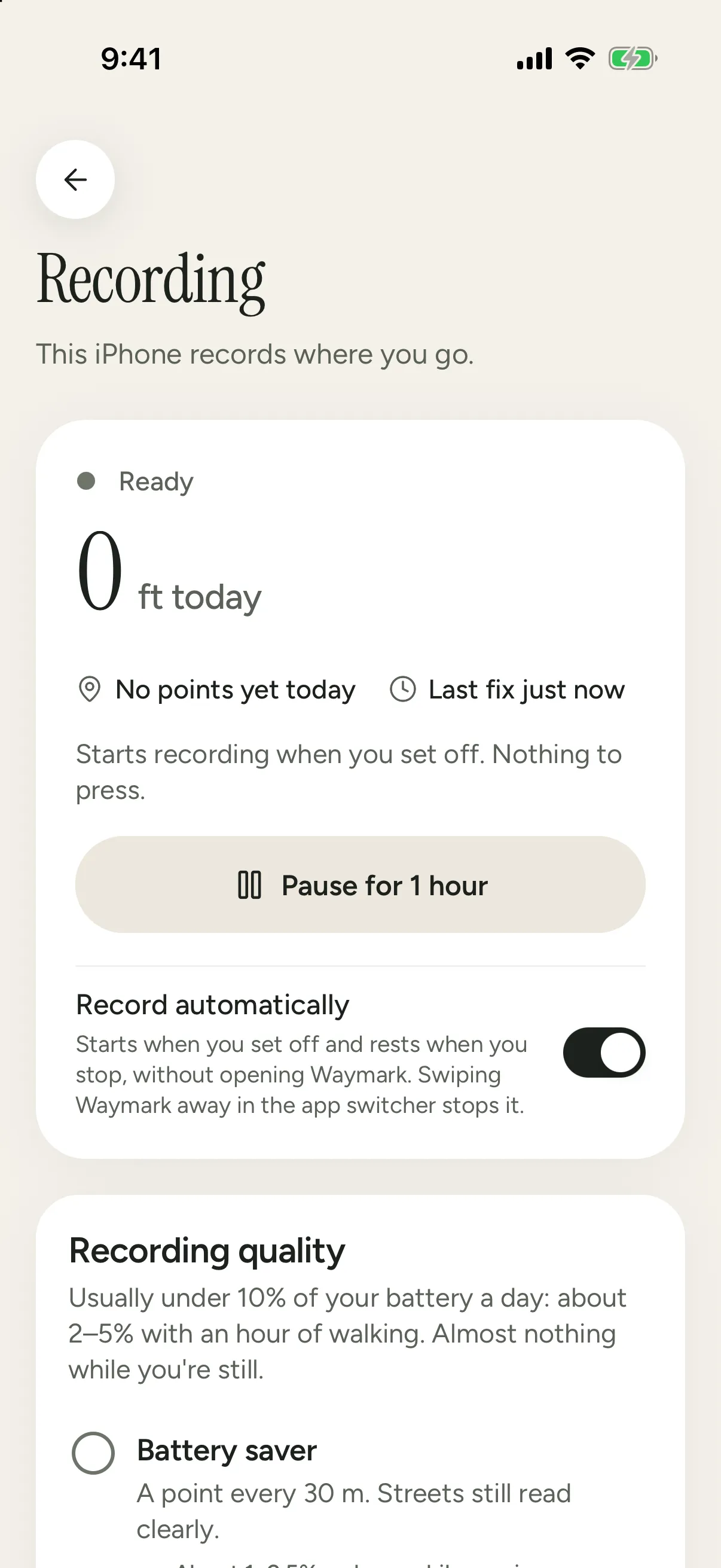
Record automatically is on by default once you allow Always location: there’s no Start button to press. It’s in Settings › Recording, and it needs:
- Location: Always. So iOS can wake Waymark when you set off, even if you haven’t opened it in days.
- Precise Location, so it can draw streets.
- Motion & Fitness (recommended), so the first steps of a walk aren’t missed.
- Background App Refresh on for Waymark, and Low Power Mode off while you want full recording.
Whatever is missing shows as one card in Settings › Recording, with the way to fix it. There are no other pop-ups.
What it does all day
On the Map, a small pill at the top says Recording, or Paused · 45 min. Tap it to pause for an hour, resume, or open the recording settings.
GPS runs while you move, at the Recording quality you chose. When you’ve been still for a few minutes, Waymark rests, in one of two ways:
- Sleeping, where you’ve already explored, inside a hidden place, when the battery is under 20 %, and in Low Power Mode. iOS suspends Waymark until you’ve moved a few hundred meters away. The first stretch of that outing isn’t recorded, but it’s usually ground you already have.
- Watching, somewhere new. Waymark stays awake on cell-tower location, which is why you may see the blue location pill in the status bar. The next step brings GPS back within seconds. After 15 minutes still in one spot it sleeps there too, and the pill goes away.
Nothing is ever recorded inside your hidden places. Hide home, work or anywhere else in Settings › Places.
Recording quality
| Quality | A point every | Good for |
|---|---|---|
| Battery saver | 30 m | Long days when battery matters more than detail |
| Balanced (default) | 15 m | Walking and cycling in town |
| Precise | 8 m | Narrow paths and dense old streets |
| Places only | No GPS | Noting countries, regions and cities, with no routes |
Positions less accurate than 50 m never draw a route, and GPS spikes are dropped.
Other ways to record
- By hand. Start recording and Stop recording in Settings › Recording. With Always location it still rests when you’re still. With While Using, GPS stays on until you stop, because iOS won’t let an app restart GPS from the background.
- Pause for 1 hour, from the pill on the Map or Settings › Recording. Nothing is recorded, and recording starts again with your first move after the hour.
- Shortcuts. Start recording, Stop recording and Pause for 1 hour work from Siri, the Action button and personal automations, for example “When I connect to CarPlay, start recording”. They run without opening Waymark. Stopping while Record automatically is on means it stays stopped until you start it again.
What stops recording
- Swiping Waymark away in the app switcher can stop recording until you next open it. iOS decides this, not Waymark, so leave it in the switcher.
- Restarting your iPhone. Nothing runs until you unlock it for the first time.
- Turning off Always, Precise Location or Background App Refresh. The pill on the Map reads Recording stopped, and Settings › Recording says why.
When there’s a gap, Waymark tells you once, the next time you open it: “Waymark wasn’t running from 14:02 to 18:40, so that stretch isn’t on your map.”
Battery
GPS runs only while you’re moving and sleeps when you’re still, so a normal day costs a few percent of battery. The screen costs far more than recording does.
| While | About |
|---|---|
| Walking, Balanced quality | 1–3 % an hour |
| Resting somewhere new (watching) | 0.2–0.5 % an hour |
| Resting where you’ve been (sleeping) | close to nothing |
| A day with an hour of walking | 2–5 % |
| A long day (more walking, a drive) | usually under 10 % |
| Places only | under 1 % a day |
| The Map open on screen | 10–20 % an hour |
These are estimates from how Waymark and iOS work and what similar apps report. The one day measured so far, with a 4 km walk, used about 3 %. Your iPhone, its battery’s age, the signal and how you move all change them. For the least battery, choose Battery saver, or Places only.