

Install and set up
- Download Waymark from the App Store. It’s free, and there’s no account to make.
- Open it. Swipe through four short pages, then tap Get started. Your iPhone is all you need.
- Allow location, then Always. iOS asks twice: first for While Using, then for Always. Recording starts with the same tap.
- Motion & Fitness, photos, workouts from Apple Health and the Sunday recap each get one question. Say yes, or Not now and do it later.
- Your atlas is ready. Open it, or tap See a sample atlas first to look around a few months of someone else’s walks; Start my own atlas brings you back.
What Waymark asks for, and why
Each one is asked only when a feature needs it, and you can change it later in the iPhone’s Settings app.
| Permission | Why |
|---|---|
| Location: While Using | Records while Waymark is open, or after you tap Start recording. |
| Location: Always | Lets a walk count when Waymark is closed, and lets Record automatically start and stop for you. |
| Precise Location | Without it iOS shares only an approximate area, and no streets can be drawn. |
| Motion & Fitness | Notices the moment you start moving, so GPS is back within seconds, and rests it when you stop. |
| Photos | Reads where and when each photo was taken, on your iPhone. Photos are never copied or uploaded. |
| Apple Health | Only if you import from it: reads your workouts and their routes, and nothing else. |
| Notifications | Only if you turn on the Sunday recap, a notification each Sunday evening with the week’s new ground. |
If something is missing, Settings › Recording shows one card saying what, with a button that goes straight to the right switch.
Your first recording
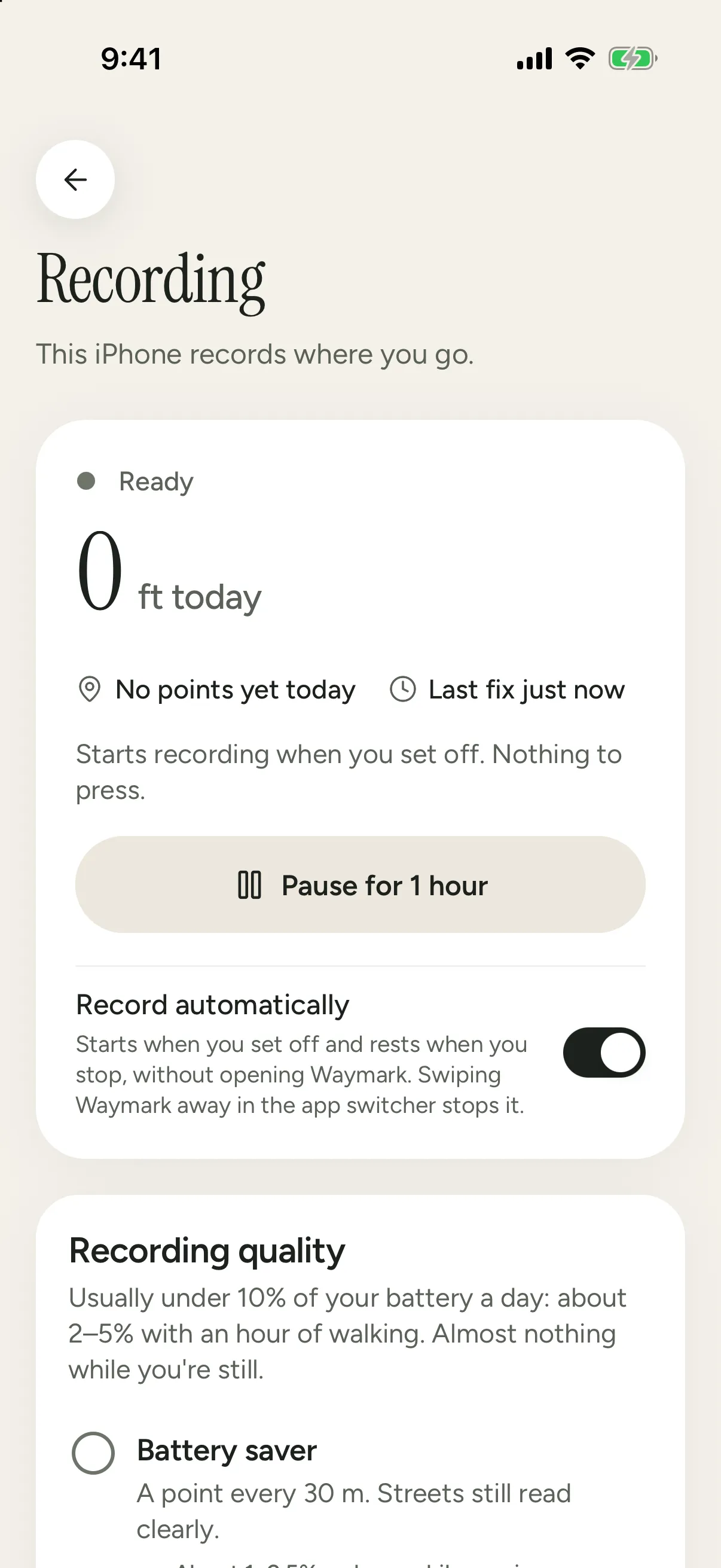
- Open Settings (the gear on Progress) › Recording.
- Tap Start recording and go for a walk. With the screen off is fine.
- Tap Stop recording when you’re back, or leave it on: Waymark rests GPS when you’re still.
While it records, a small Recording pill sits at the top of the Map. Tap it to pause for an hour, resume, or open the recording settings.
Record automatically
With Always location, Record automatically is on by default (it’s in Settings › Recording). Then there’s nothing to press: GPS runs while you move and rests when you’re still, so a normal day costs a few percent of battery. Pause for 1 hour is there when you want a break. Recording without pressing record has the details.
Bring in your history
Your atlas doesn’t have to start today. Settings › Import reads your photos, Google Maps Timeline, Apple Health, Strava, GPX and other route files, and Fog of World. Bring in your history walks through each, including how to remove a photo that isn’t yours, such as one saved from Messages.
Reading the map
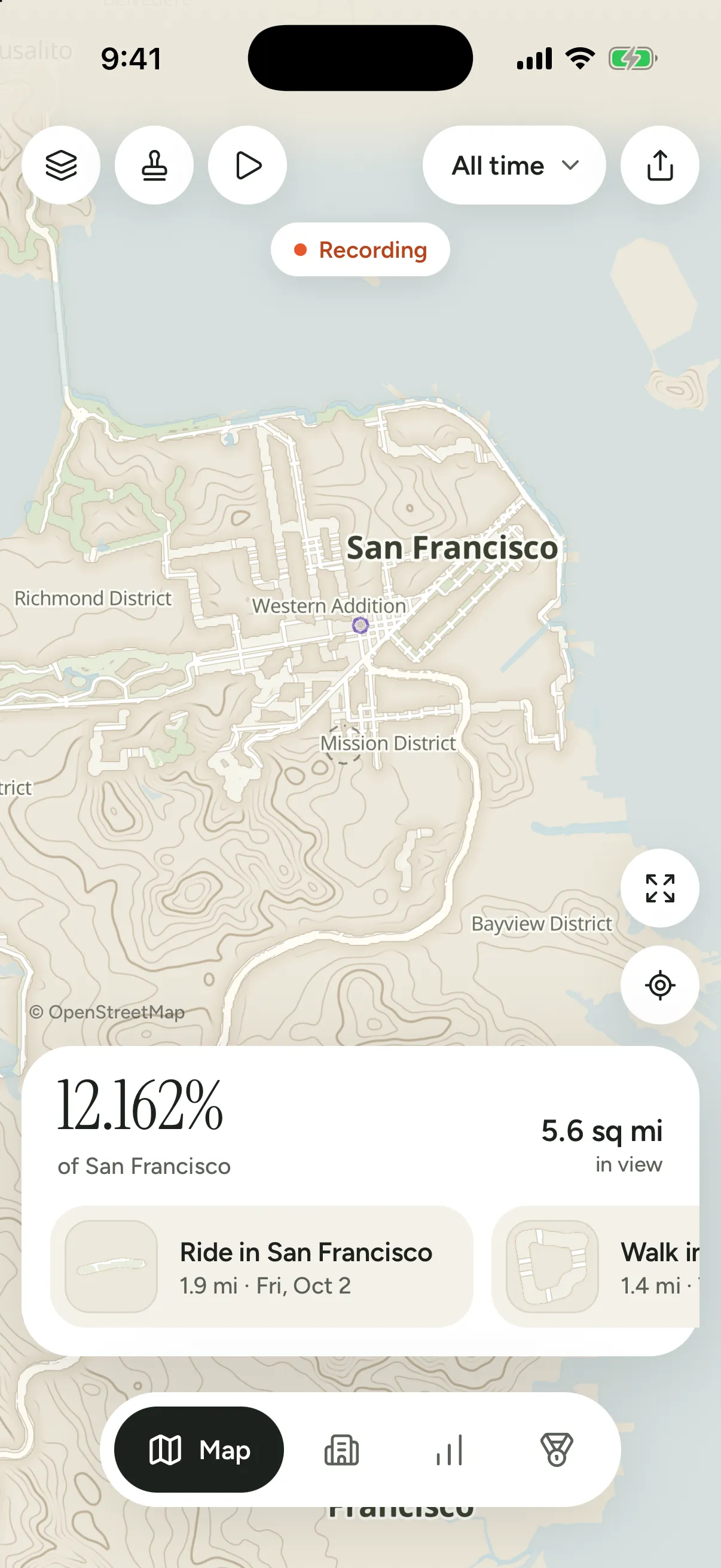
- The fog covers everywhere you haven’t been. Where you walk, ride or drive, it clears: about 50 m either side of your route, and 80 m around a photo. Map options (the layers button) › Fog clears sets it to Street (10 m), Blocks (50 m) or Wide (95 m), and every area and percentage counts that width. Zoomed far out, the fog is drawn a little wider so thin routes still show; up close it’s exactly the width you chose.
- Your level and the new-ground medals (Terra Incognita, Big Week) count kilometres of paths you’d never taken, a length that doesn’t change with Fog clears. Neighborhood Hero is your share of the city you’re in, the same number Places shows at your Fog clears width. A day counts toward your streak when a journey that day uncovers new ground; a day of photos alone doesn’t.
- No lines. The map draws no route lines: the cleared fog is the record of where you’ve been. Tap cleared ground, or a journey in the strip, and that journey’s clearing is tinted.
- Map options also hides the map’s labels, hides your location dot (on by default), and switches contours, photo pins (off by default) and the other layers. It takes half the screen at most, so you see each change on the map as you make it; drag it down to put it away.
- The scratch map (the stamp button in the map’s top row, or Scratch map under your passport on Progress) shades the countries, states and cities you’ve been to, and lets you scratch off places from before Waymark. Tap a place you’ve explored to take it off: Waymark says what’s recorded inside it and removes only that (see Your data). Overseas parts such as French Guiana or Svalbard count as their own countries. The × in its header takes you back.
- Share (top right) makes a picture of the map as you see it, without the controls or anything you’ve hidden, with the place and the dates. On the scratch map it’s the whole world with your counts.
- The date pill at the top of the Map shows All time, or only Today, This week, This month or This year: the fog, the card and the journeys follow it.
- The card at the bottom of the Map says how much of the place you’re looking at you’ve explored: your city when you’re zoomed in on it, then the state, the country and the world as you zoom out. Beside it, the ground explored in view, and below, the journeys there.
- Photo pins (switch them on in Map options): tap one for its photos. Tap the photo to see it full screen, View day to open that day in Journeys, or Hide this spot to hide the area around it.
- Replay (the play button in the map’s top row) plays your history on the map: the fog lifts where you went, with photos popping in on the day you took them. The share button on its card records it as a video. It plays your last 30 days free, and everything from your first journey with Waymark Plus.
- Progress has your total (“Explored, all time”), your share of the world, and your level, from Newcomer to Atlas. Medals has the 33 medals along the way: tap one to see exactly what earns each metal, and tap Bronze, Silver, Gold or Platinum to see the ones you’ve earned at that metal.
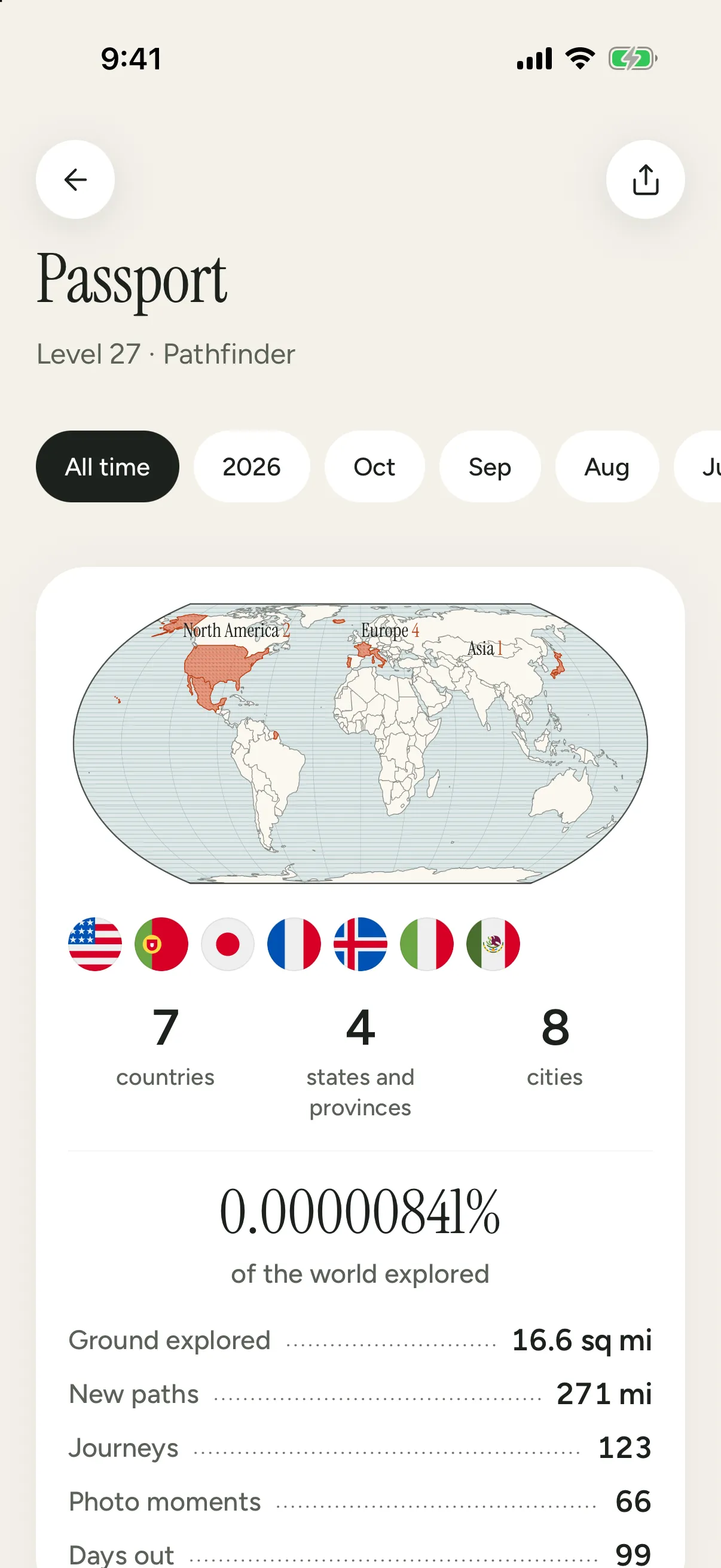
- Your passport, the card under the total on Progress, puts where you’ve been on one page: the countries on a world map with their flags, how many states and cities, the ground you’ve cleared and your share of the world, journeys and days out. Pick All time, a year or a recent month, then tap the share button for a story-size or square image. It shows only counts and countries, never where you were, and it’s free. Under it, Countries has a flag for every country you’ve been to, and the way into the scratch map.
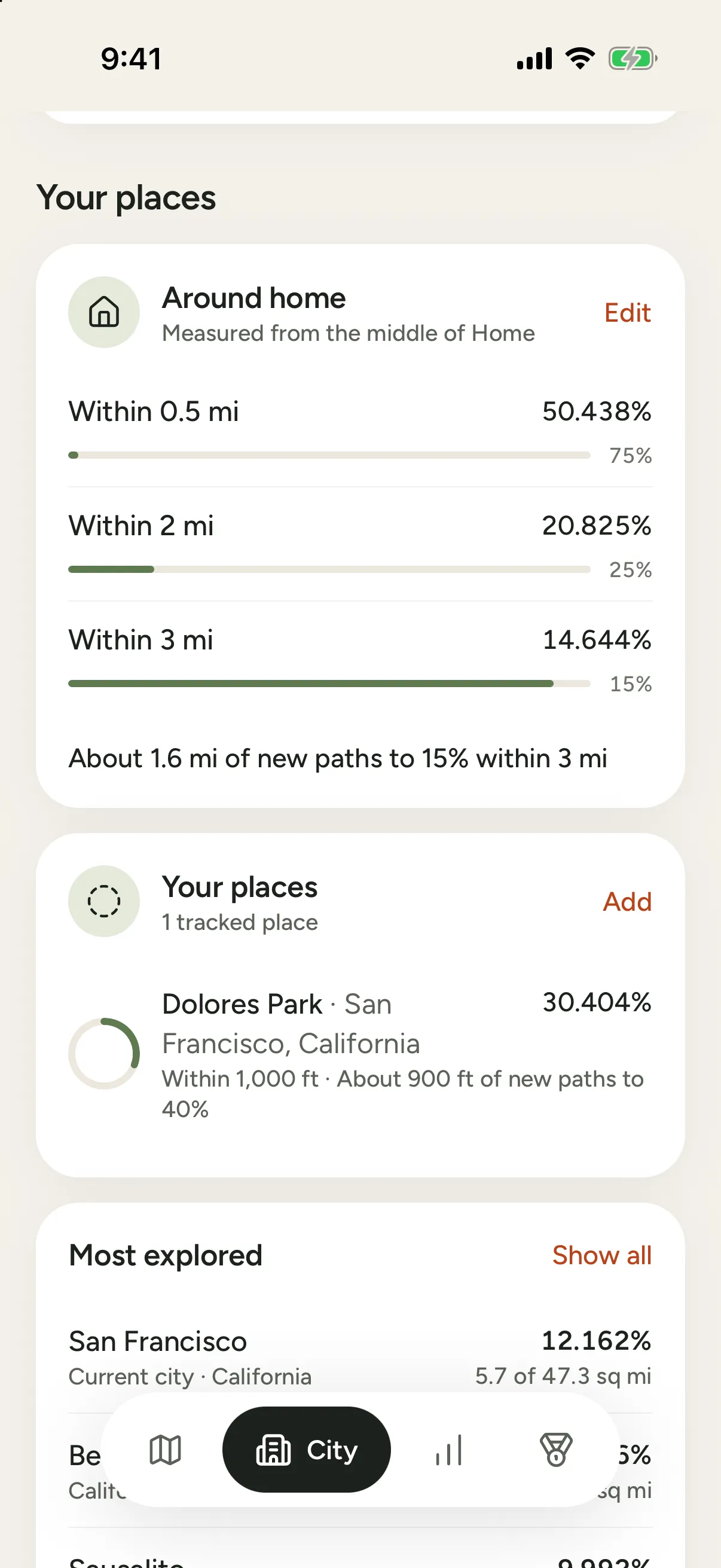
- City shows the city you’re in and how much of it you’ve explored, what’s new this week, and the journeys there (All journeys opens the whole journal). Tap the button at the top right (it reads Here, Last journey or Pinned) to pin another city, or any county, state or country; Where you are goes back. Below are your places, your county in the US, and the places you know best; your countries are on Progress.
- Tap a place name on the map, like a city or a country, and the card shows your share of it until you move the map.
- Friends groups (on the City tab) let you compare with people you invite through iCloud: send the invitation by Messages or Mail, or Copy Link and paste it in WhatsApp or any app. Anyone with the link can join a new group; to keep it to the people you invite, tap the line under the group’s name in the invite sheet. Whoever joins needs Waymark and iCloud on their iPhone. On the board: everyone’s share of the place on show, this week or all time, and the city each friend was last in. Friends see your name, your last city and how much of each place you’ve explored, never your map. Each person’s numbers count at the viewer’s own Fog clears width, so everyone is compared like for like.
- Around home measures the ground within 1, 3 and 5 km of home (or ½, 2 and 3 miles), from the middle of your home. You have one home: set it from the Around home card or in Settings › Places, where you can type its address or move the map under the pin. Until you do, the card says Not set yet, and Waymark finds home after a few walks that start and end there. It then says it’s a guess, and Show on map shows where.
- Your places: touch and hold the Map to save a place there, such as a park, a campus or an old neighbourhood. Your places on the City tab shows how much of it you’ve explored. In Settings › Places you can also hide a place, like home or work, so nothing there is recorded, drawn or exported.
- Hide a journey you’d rather not see or share: Hide this journey on the map card, in Journeys or on the journey. It’s gone from your map, stats and exports; Settings › Hidden journeys brings it back.
Widgets
Waymark has widgets for your Home Screen and Lock Screen:
- Streak: your day streak, over the last seven days drawn as day marks. A day that uncovered new ground is filled in, a run is joined by a line, and today, in vermilion, fills in once it counts.
- Progress: the week’s new ground and your level, beside a medal on its way: its engraving in a ring, with an arc for how far along you are.
- City: the place on your City tab and how much of it you’ve explored, with what’s new there this week. On the Lock Screen, or small on the Home Screen.
- Home map: the fog around home, small, medium or large. It’s part of Waymark Plus.
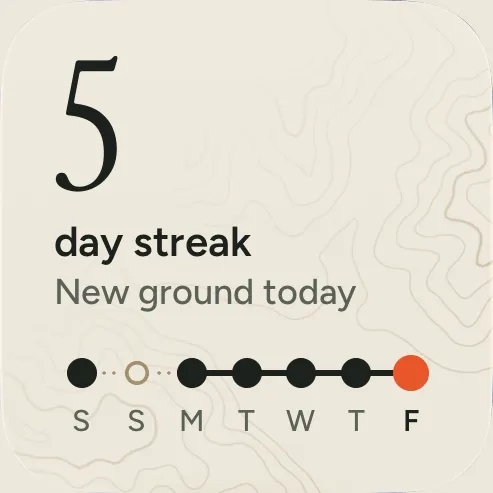
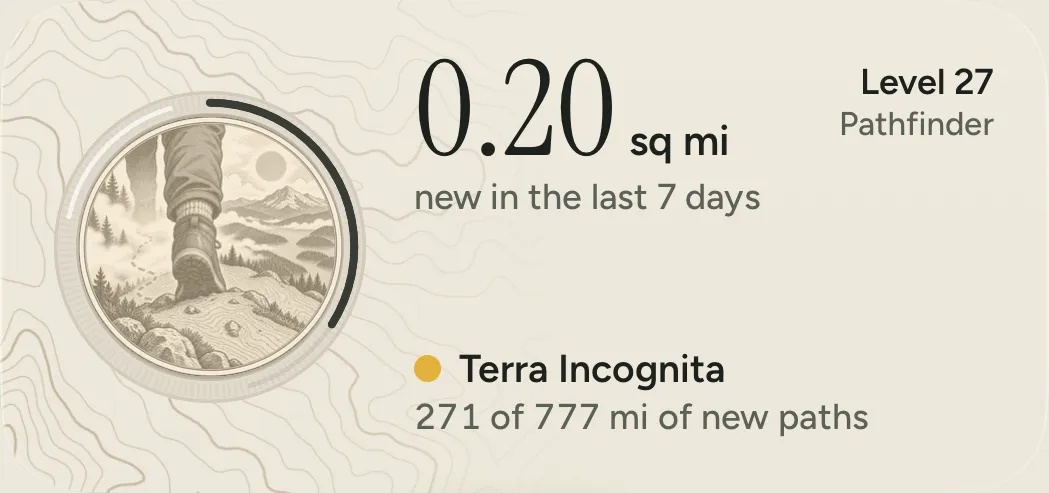
Settings › Widgets shows them, with these steps.
- Home Screen: touch and hold an empty spot until the apps jiggle, tap Edit › Add Widget, then find Waymark, pick a widget and a size, and tap Add Widget.
- Lock Screen: touch and hold the Lock Screen, tap Customize, then Lock Screen, tap the space under the time, and pick Waymark’s Streak, Progress or City.
To show the Home map around another place, or closer in, touch and hold it and tap Edit Widget.
Waymark Plus
Everything above, apart from Replay beyond the last 30 days and the Home map widget, is free, forever. Waymark Plus is one optional purchase, paid once, that adds new ways of looking at your atlas. Find it in Settings › About › Waymark Plus, or tap anything with the small gold Plus mark, in Map options or under a replay. Waymark Plus has what’s in it and the price.
Where your data lives
On your iPhone, and nowhere else. There’s no account and no Waymark server. Keep a copy with Back up to iCloud Drive or Save a backup file in Settings › Your data. Your data and privacy explains backups, exports and deleting everything.
Where things are
| Tab | What’s there |
|---|---|
| Map | Your atlas: the fog and the ground you’ve cleared, photo places, Map options (the layers button), the scratch map, Replay and Share. |
| City | Your city (or one you pin): how much of it you’ve explored, friends groups, its journeys, and your places. All journeys opens the journal of every walk, ride and trip. |
| Progress | Your total, your level, your passport and the week. |
| Medals | The 33 medals: what you’ve earned, what’s next, what each one takes, and share cards. |
Settings (the gear on Progress) starts with Recording (Start, Pause, Record automatically, Recording quality, and anything iOS needs from you) and Widgets, then units and the Sunday recap, your places (hidden, tracked and home), hidden journeys, imports, Your data (backups, exports, deleting everything) and About (Waymark Plus, Diagnostics).